
Simulation (Paper Trading) – Default Broker Connection
The Tickblaze platform includes a simulated broker account connection for practice trading. The Simulation Broker connection is the default broker connection, and it comes pre-configured to auto-connect when you start the Tickblaze platform.
The Simulation Broker connection is shown in the screenshot below:
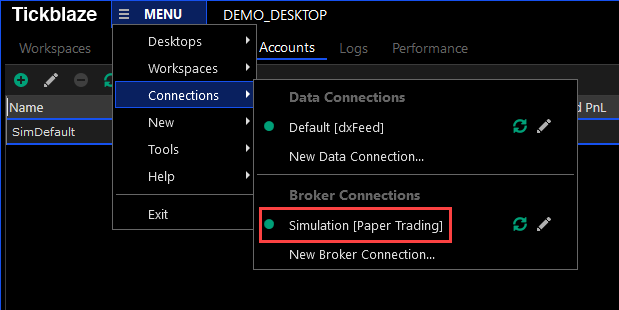
The Simulation Broker connection is pre-configured with a default simulation “paper trading” account that can be used for practice trading. It has a default starting balance of $100,000. This simulated paper trading account can be modified to have any starting account balance and your choice of various commission setting scripts.
To access and view your default simulation paper trading account:
- Select the “Accounts” tab on the Tickblaze desktop to show the accounts tab.
- The “SimDefault” default paper trading account will be displayed as shown below:
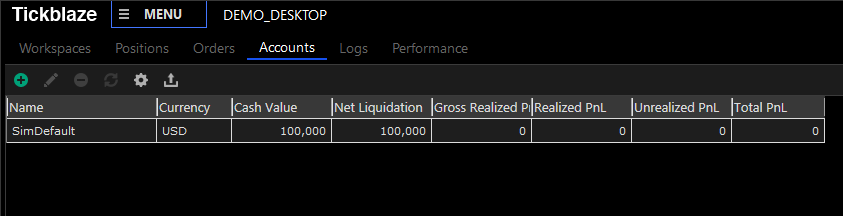
To view the settings for the “SimDefault” account:
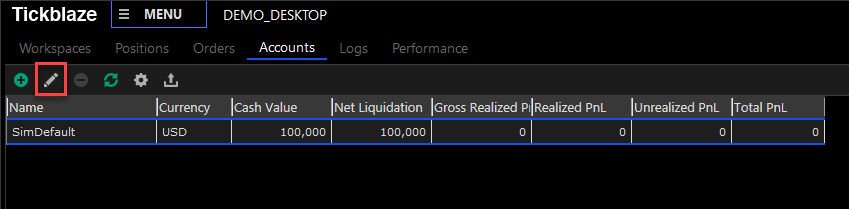
- Click on the Accounts tab “SimDefault” account row. This will enable the account editing tools.
- Click on the edit icon (shown below in the red square).
- The SimDefault account settings dialog will be displayed as shown below:
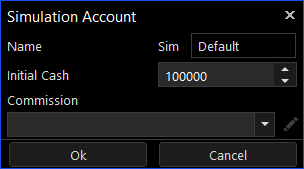
- Any of the settings can be changed. To save changes and exit, click on the “Ok” button.
- To leave settings unchanged and exit, click on the “Cancel” button.
Multiple Simulation Account Capability
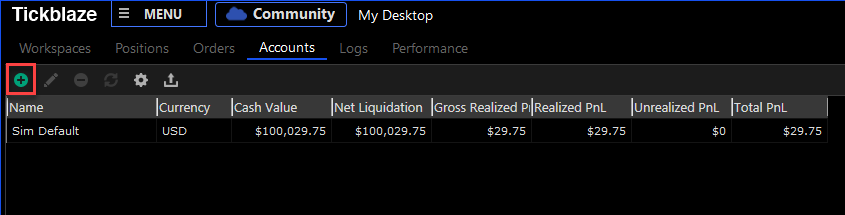
To add more simulation accounts:
- Click on the add icon (shown below in the red square).
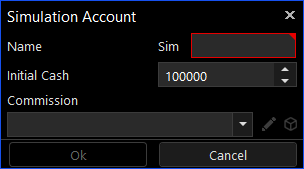
- The Simulation Account settings dialog will be displayed as shown below:
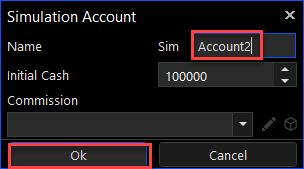
- Enter a name for the new Sim account, “Sim” + string in the red rectangle and click on the “Ok” button.
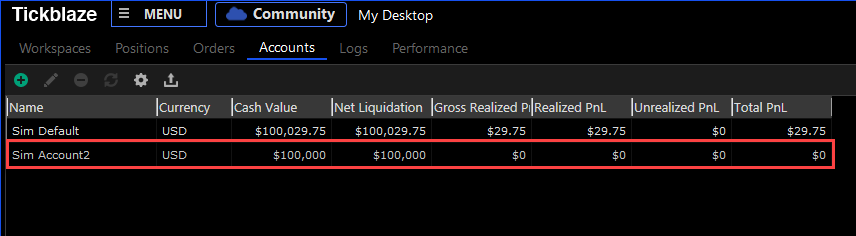
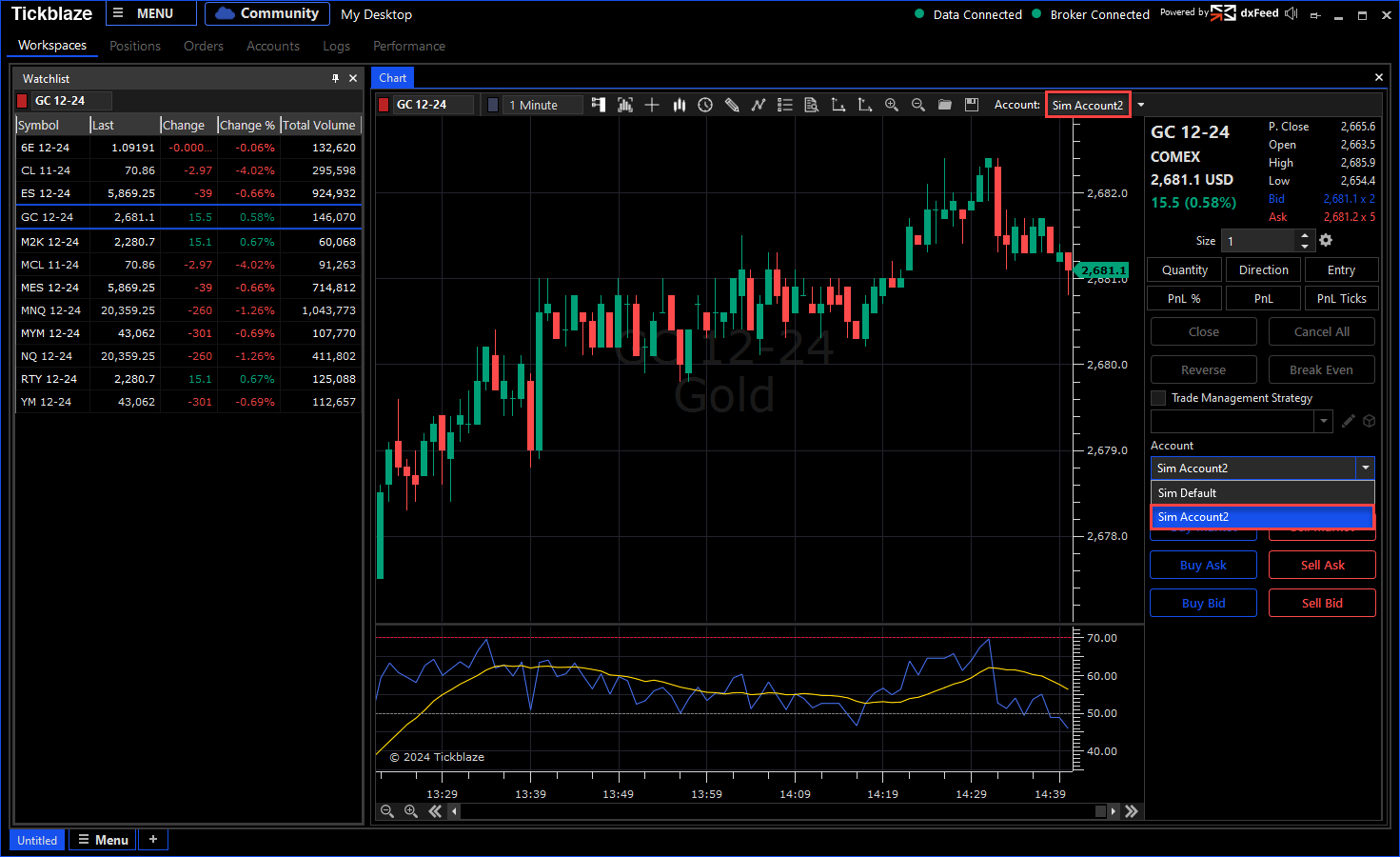
- The new Sim account will appear on the Accounts tab list and on the charts and Trade Pads as shown below:
For full details on the Sim accounts functionality on charts and Trade Pads, go to Charts and Trade Pad sections.