Orders
On this page
The order tables display the pending, filled and cancelled orders that were created by the Desktop. The tables can be accessed from the Desktop Orders tab or added to any workspace.
Strategy Desktop Order Tables
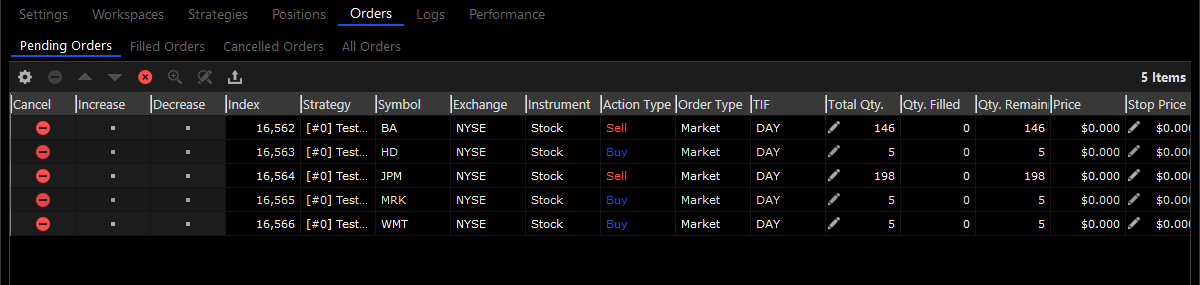
The Strategy Desktop order tables display the pending, filled and cancelled orders that were created, mostly, by the Desktop strategies. The order tables are available during backtesting, optimization and live trading, and display either simulated historical orders or live real time orders.
Standard Desktop Order Tables
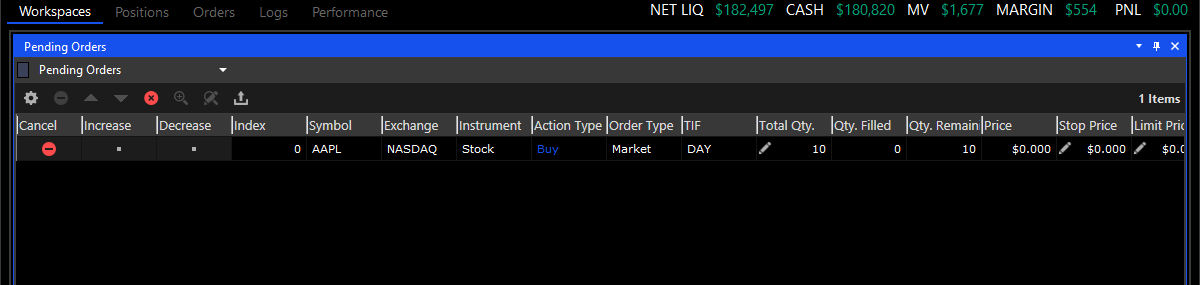
The Standard Desktop order tables display the pending, filled and cancelled orders that were created, mostly, from the Desktop trading tools (charts, dom, trade pads, etc.)
Workspace Order Tables
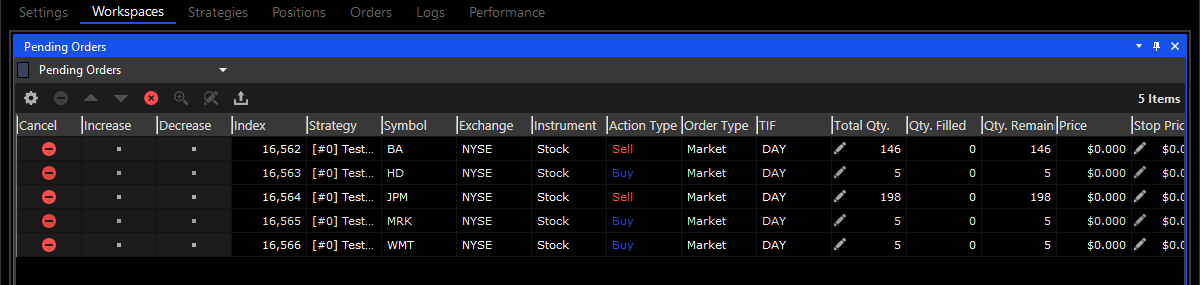
The workspace order tables are the same tables that are available in the Orders tab. When you add an orders table to a workspace it’s initially set to display the Desktop pending orders. Once the table has been added to a workspace you can change it to display pending orders, filled orders, cancelled orders, all orders and broker orders by clicking the ‘Pending Orders’ label and selecting a new orders table from the dropdown.
Broker Orders Table
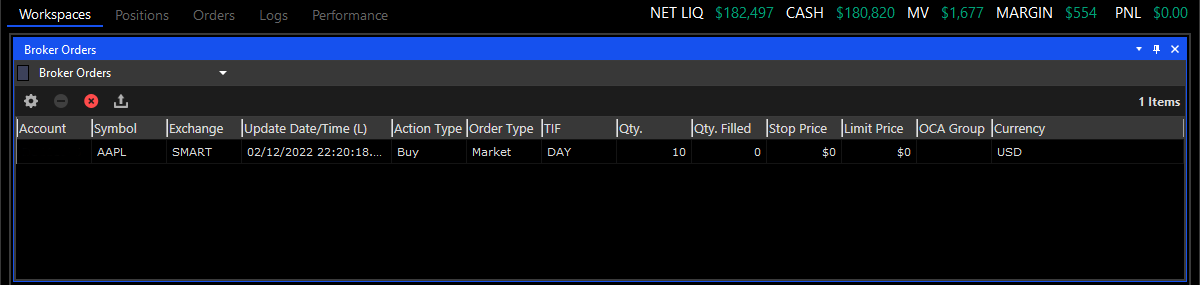
The broker orders table displays all of the pending orders in your brokerage account, regardless of their source. Unlike orders that are originally created from the Desktop, the orders in this table could belong to symbols or exchanges that are unfamiliar to the Desktop, or that the Desktop can’t fully recognize. This table is a raw display of your brokerage account pending orders.
Order Fills Window
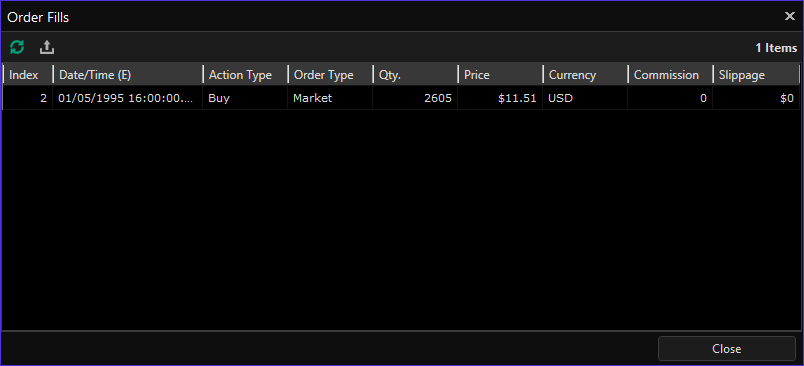
The order fills window displays all of the order fills for a single order.