Options Window
The Options Window is used for configuring platform settings and preferences, including sound settings, RSS settings, Script Designer settings and runtime settings.
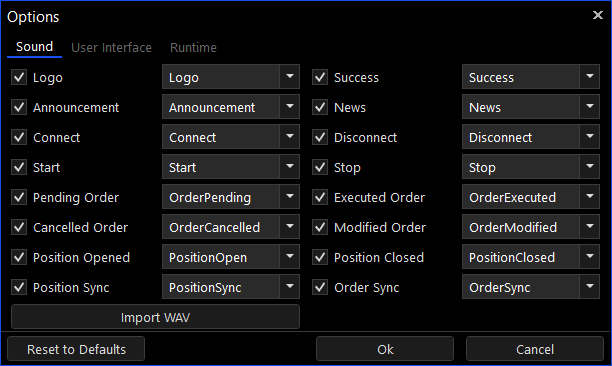
Sound Settings
The sound settings define which sound files are played for which event notifications. The platform ships with default sound files but you can also import custom sound files and use those instead. Note that you can mute / unmute any individual sound effect directly from this window, or you can mute / unmute all of them by pressing a small speaker icon at the top right-hand side of the Desktop window (next to the minimize and maximize icons).
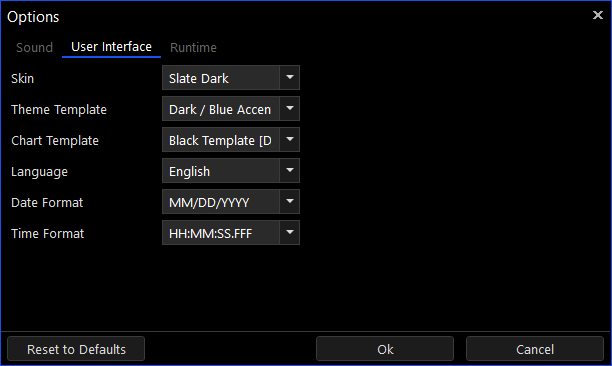
User Interface Settings
The user interface settings define various UI options such as the skin, default theme template, default chart template, language, date and time format. Some of these settings require a platform restart to take effect, while others will only apply to new Desktops. You can apply a theme template to an existing Desktop from the ‘Table Settings’ of any of the Desktop’s tables (grids). You can apply a chart template to an existing chart by loading a template from the chart’s context menu.
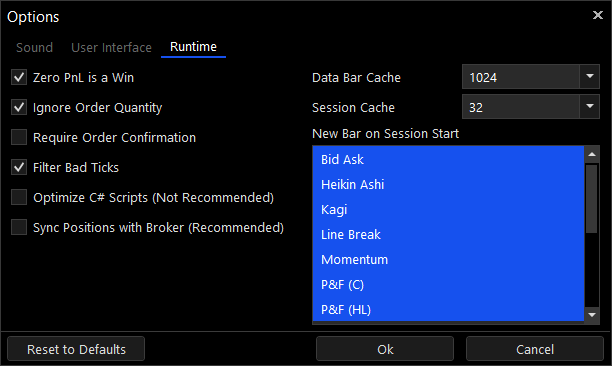
Runtime Settings
The runtime settings are a collection of settings that effect the Desktop’s backtesting, optimization, simulation and live trading behaviors. Changing these settings can have significant implications on the platform’s behavior so you should carefully read their tooltips before making any changes.