Skins
On this page
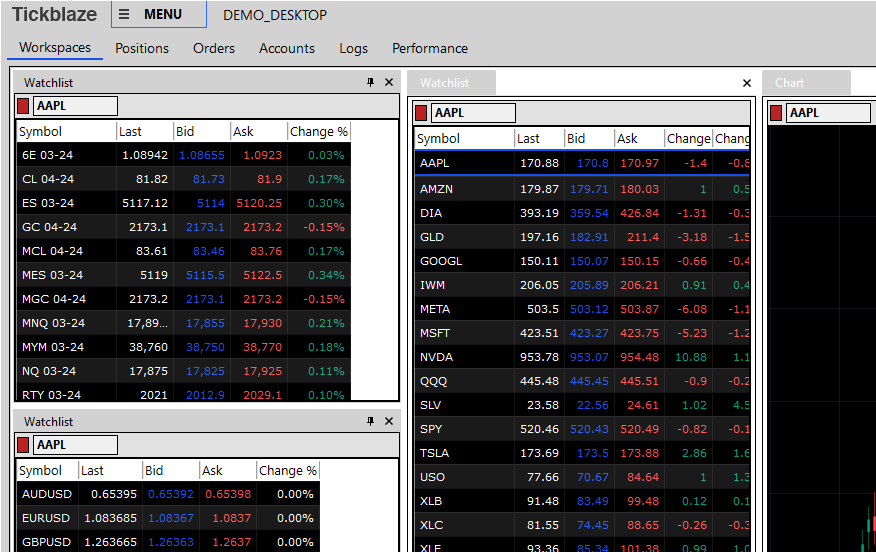
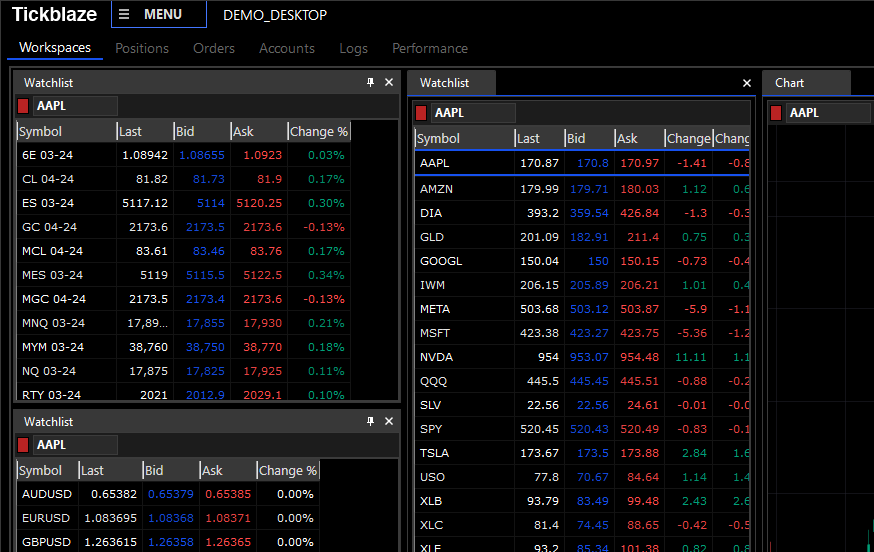
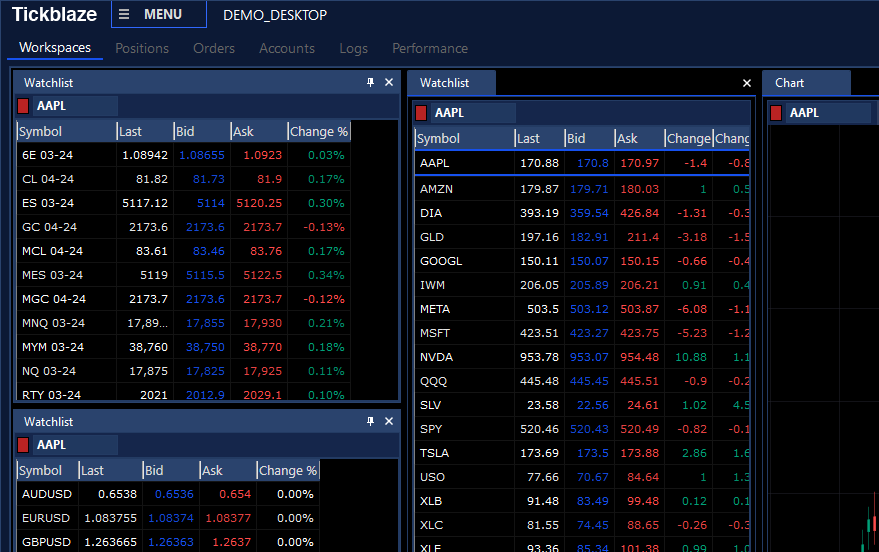
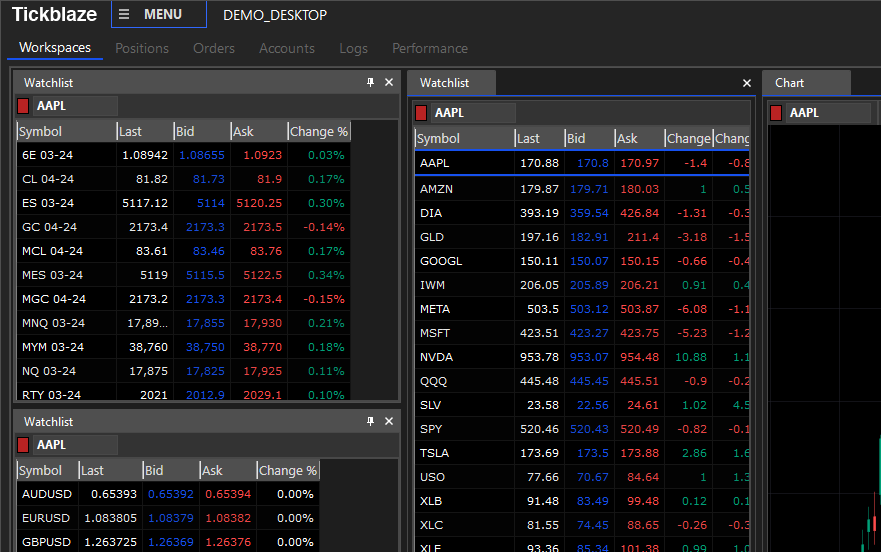
User Interface Skins are collections of color schemes for the Tickblaze user interface windows. Out of the box, Tickblaze comes with four built-in skins the user can select to customize the user interface windows color schemes.
How to select your preferred User Interface Skin
- Click on “MENU” on the top left area of the Tickblaze desktop window bar.
- Select the Tools sub-menu.
- Select Options… from the Tools sub-menu.
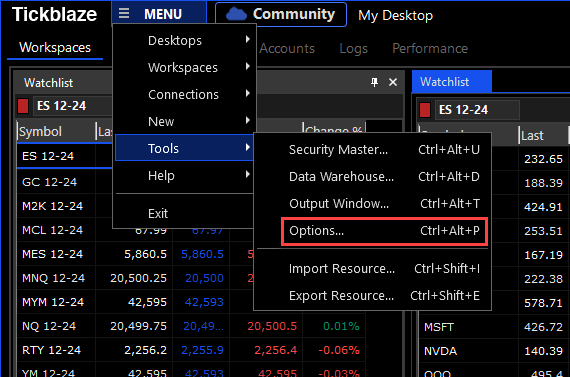
- In the Options dialog window, select the User Interface tab.
- Open the Skin drop-down (shown in the red rectangle below).
- Select the desired skin from the available choices.
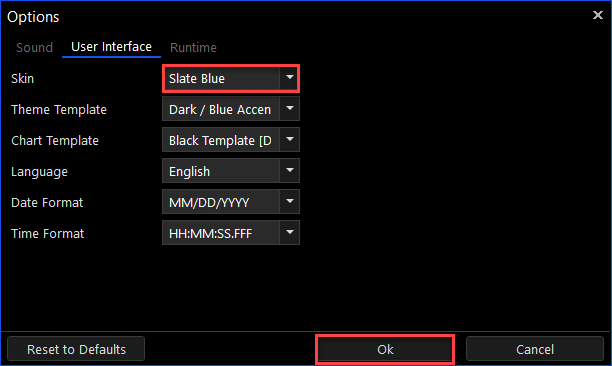
- Click on the “Ok” button to save the setting.
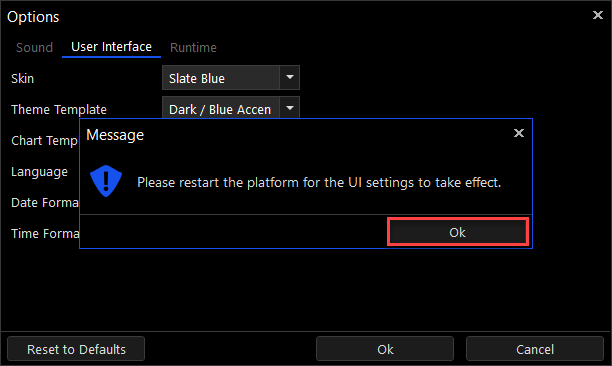
- Click on the “Ok” button to close.
- Restart the platform for the Skin setting change to take effect.
Examples of the different available Skin configurations are shown below:
Slate Dark
Slate Blue
Slate Grey
Slate Light