
Date and Time Format
The Tickblaze platform supports all the common international Data and Time formats. The desired formats for Date and Time may be set in the Options dialog window as shown below.
How to set your preferred Date Format
To set the desired Date format,
- Click on “MENU” on the top left area of the Tickblaze desktop window bar.
- Select the Tools sub-menu.
- Select Options… from the Tools sub-menu.
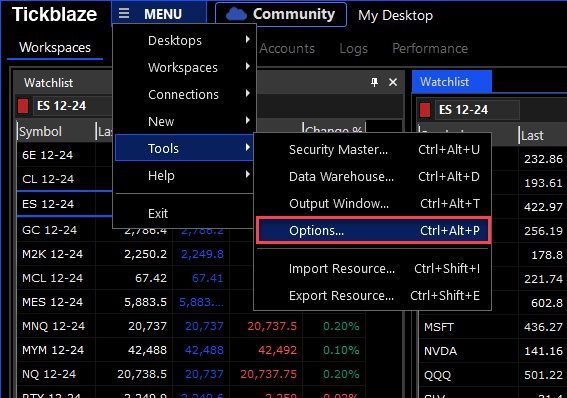
- In the Options dialog window, select the User Interface tab.
- Open the Date Format drop-down (in the red rectangle below).
- Select the desired Date Format from the available choices.
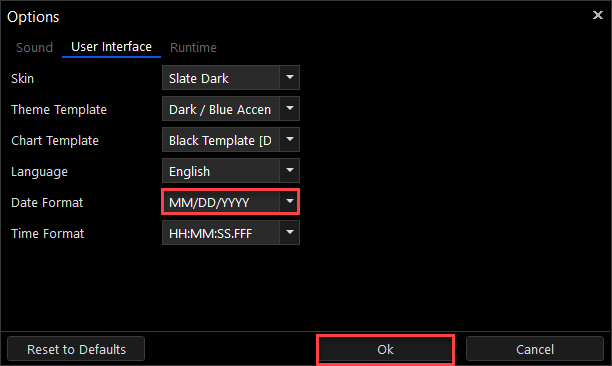
- Click on the “Ok” button so save your selection.
Time Format Setting
To set the desired Time format,
- Click on “MENU” on the top left area of the Tickblaze desktop window bar.
- Select the Tools sub-menu.
- Select Options… from the Tools sub-menu.
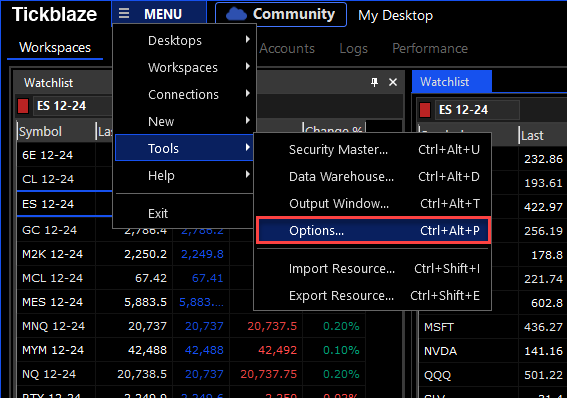
- In the Options dialog window, select the User Interface tab.
- Open the Time Format drop-down (in the red rectangle below).
- Select the desired Time Format from the available choices.
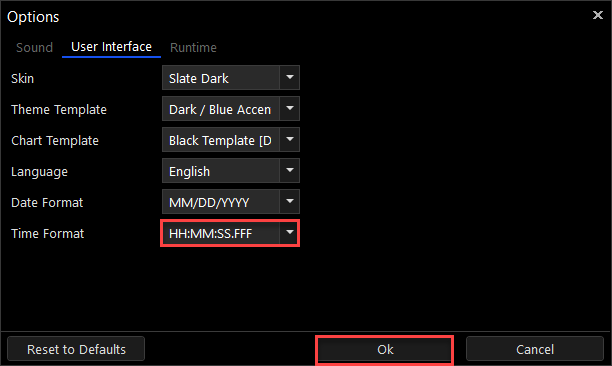
- Click on the “Ok” button so save your selection.