
Logging In to the Tickblaze Platform
The Tickblaze platform security infrastructure requires credentials to access it. Your Tickblaze platform login credentials are the same credentials you use to log in to your account in the Member’s Area website. To launch and log in to the Tickblaze platform, follow these steps:
- Locate the “Tickblaze Desktop” icon on your computer desktop.
- Double-click on the “Tickblaze Desktop” icon to open the platform login window (shown below).
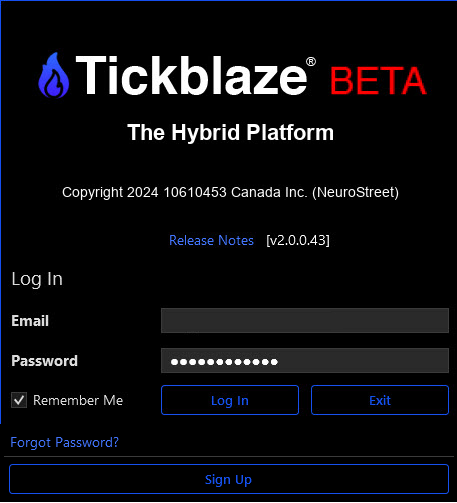
- Enter the email and password you use to log in to your account in the Member’s Area website (Enable the “Remember Me” checkbox, if you wish to save your login credentials for next time).
- Click on the “Log in” button to log in and start the platform.
- If a new version of the software is available to install, you will be prompted to install it or skip the installation (shown below):

- If you wish to install the software update, click on “Install Update” and follow the installation prompts. After the installation of the update completes, return to step 4 above to log in and start the Tickblaze platform.
- If you wish to skip the software update, click on “Skip Update”.
- The first time the platform is launched, it will open to the application shell with no active desktop or workspace and the “New Desktop Setup” dialog (shown below):
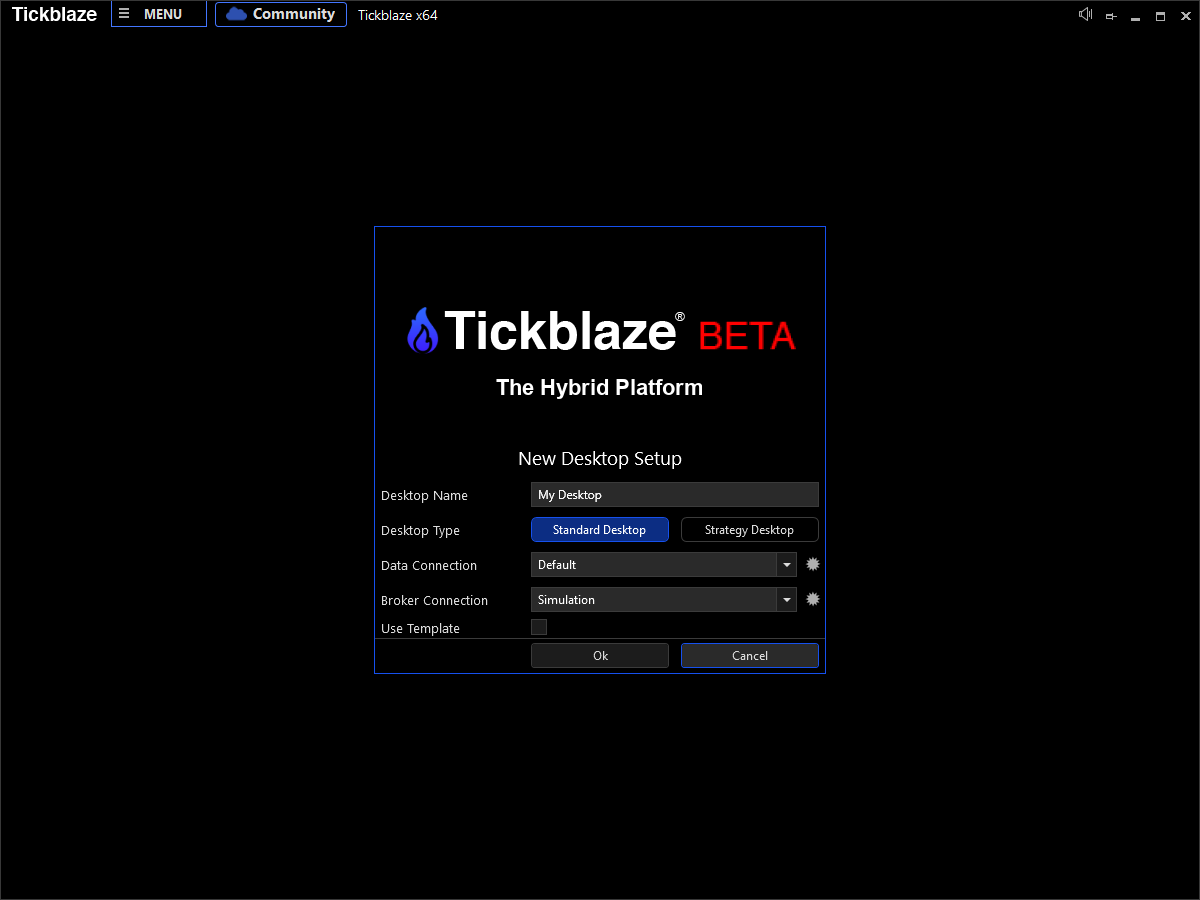
- The next step is to set up and configure your desktop. For detailed instructions on how to do this, go to Loading Tickblaze and Connecting To Data (Video) or How To Create a New or Open an Existing Desktop (Video).
- Your Tickblaze platform is now ready to use.