How to apply an existing Theme Template to a table
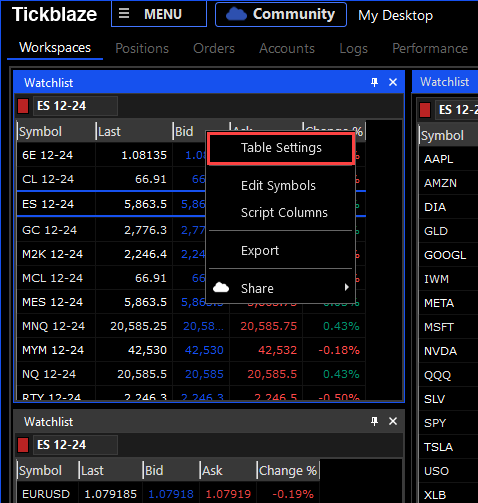
Find the table to which you want to apply a Theme Template or create it.
On the selected table, right-click and select “Table Settings” (shown in the red rectangle) from the menu.
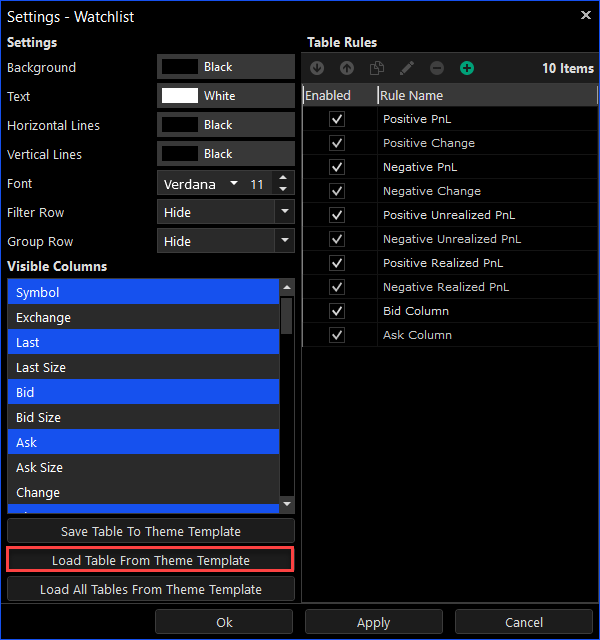
In the Table Settings window, click on “Load Table From Theme Template” (in red rectangle shown below).
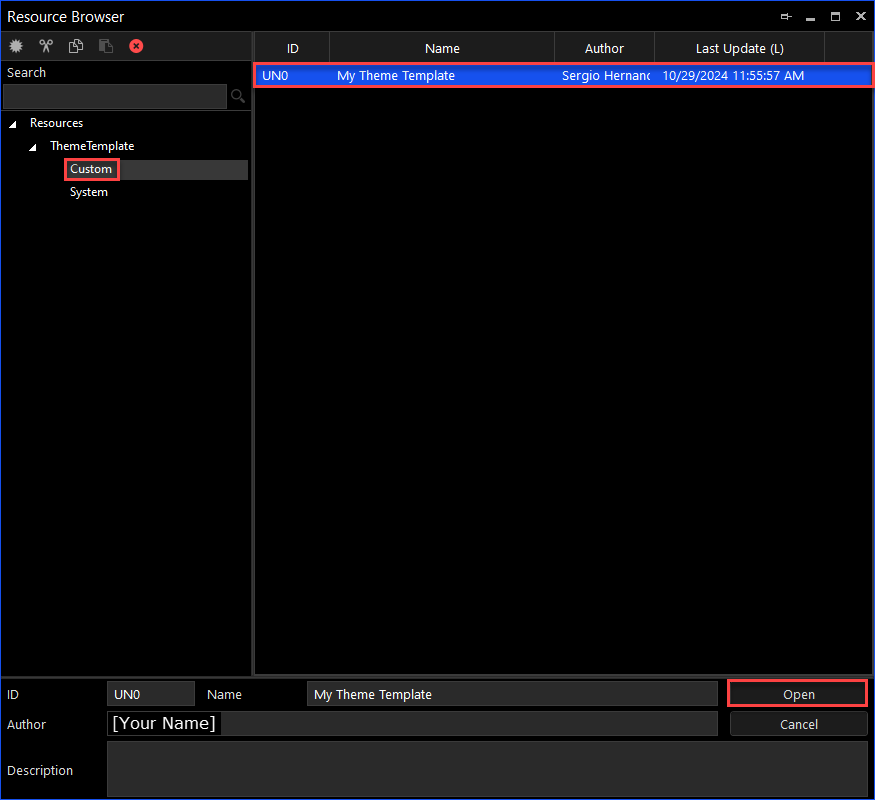
In the Resource Browser window “Resources” folder tree, select the “Custom” folder and select the Theme Template you wish to apply to the table from the list in the pane to the right (shown in the red rectangles below):
Click on the “Open” button (shown in the red rectangle above) to apply the Theme Template.
The properties in the applied Theme Template will be applied to the table.