
Rithmic Broker
To configure the Rithmic broker connection to connect to the broker where you have opened a trading account, follow these steps:
- Log in to the Tickblaze platform, if you haven’t already done so.
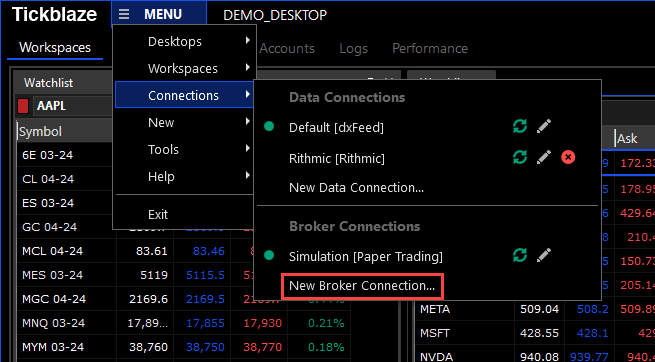
- Click on “MENU” on the top left area of the Tickblaze desktop window bar.
- Select the “Connections” sub-menu item.
- Select the “New Broker Connection…” sub-menu item (shown in the red rectangle below):
- The Broker Connection Wizard window will appear as shown below:
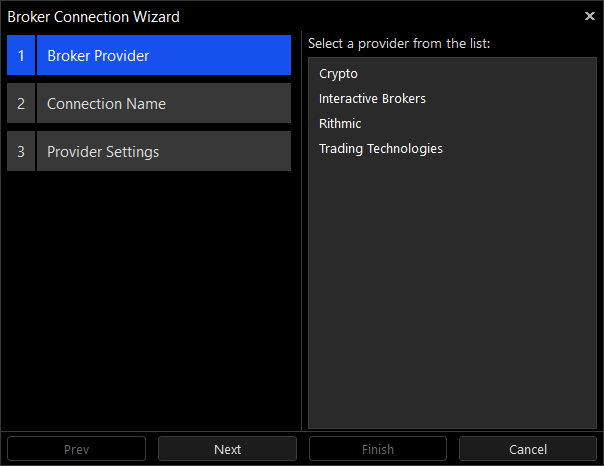
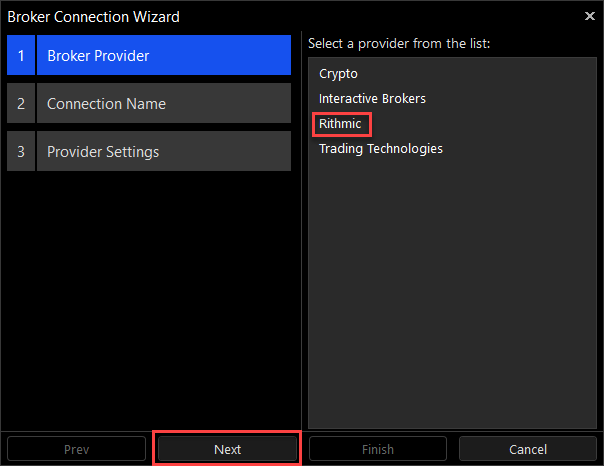
- Select the “Rithmic” provider for the brokerage service where you have an account and click on the “Next” button.
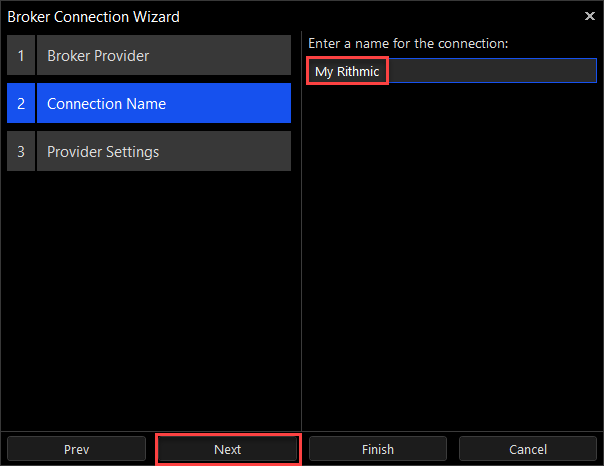
- Enter a unique name for the broker connection and click on the “Next” button.
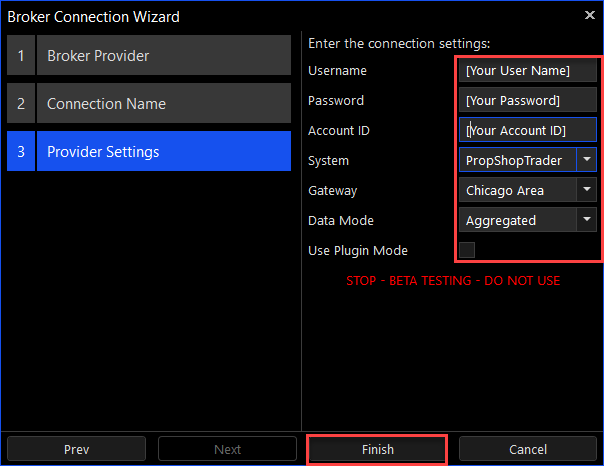
- The Broker Connection Wizard Provider Settings window will appear as shown below.
- Enter the user name, password and account ID for your broker connection and select the appropriate selections for the “System”, “Gateway”, “Data Mode” and “Use Plugin Mode” settings per the instructions provided by your data provider (this settings list applies to the Rithmic broker connection example – Each broker connection service may have unique configuration settings).
- Note: The System, Gateway and Data Mode settings vary depending on the specific broker. For example, for AMP Futures, the Data Mode setting will be “R/Trader”, while for other brokers this Data Mode setting will be “Aggregated”.
- Click on the “Finish” button.
- The new broker connection will now appear as an available connection in the Tickblaze Desktop MENU/Connections sub-menu as shown in the red rectangle below:
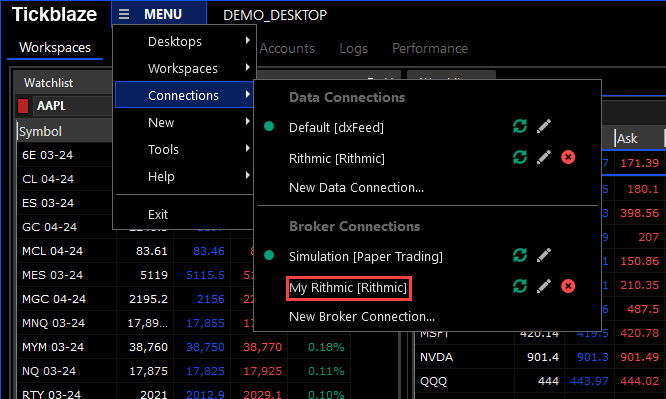
- To switch from the current broker connection to one of the other available (configured) broker connections, simply click on the desired broker connection. The current broker connection will be disconnected, and the newly selected broker connection will connect.