
Creating and Saving Chart Templates
When a chart has been configured according to all your preferences, a template of this configuration can be saved as shown in the instructions below.
For those who prefer video instructions, the following video demonstrates how to create charts and chart templates with examples: Create Charts and Chart Templates
How to create and save chart templates
- Configure your chart with all the desired content. This can include any of the settings in the Data Series, Chart Panels Settings window, Chart Type, Look back, X-Axis and Y-Axis settings, indicators, etc.
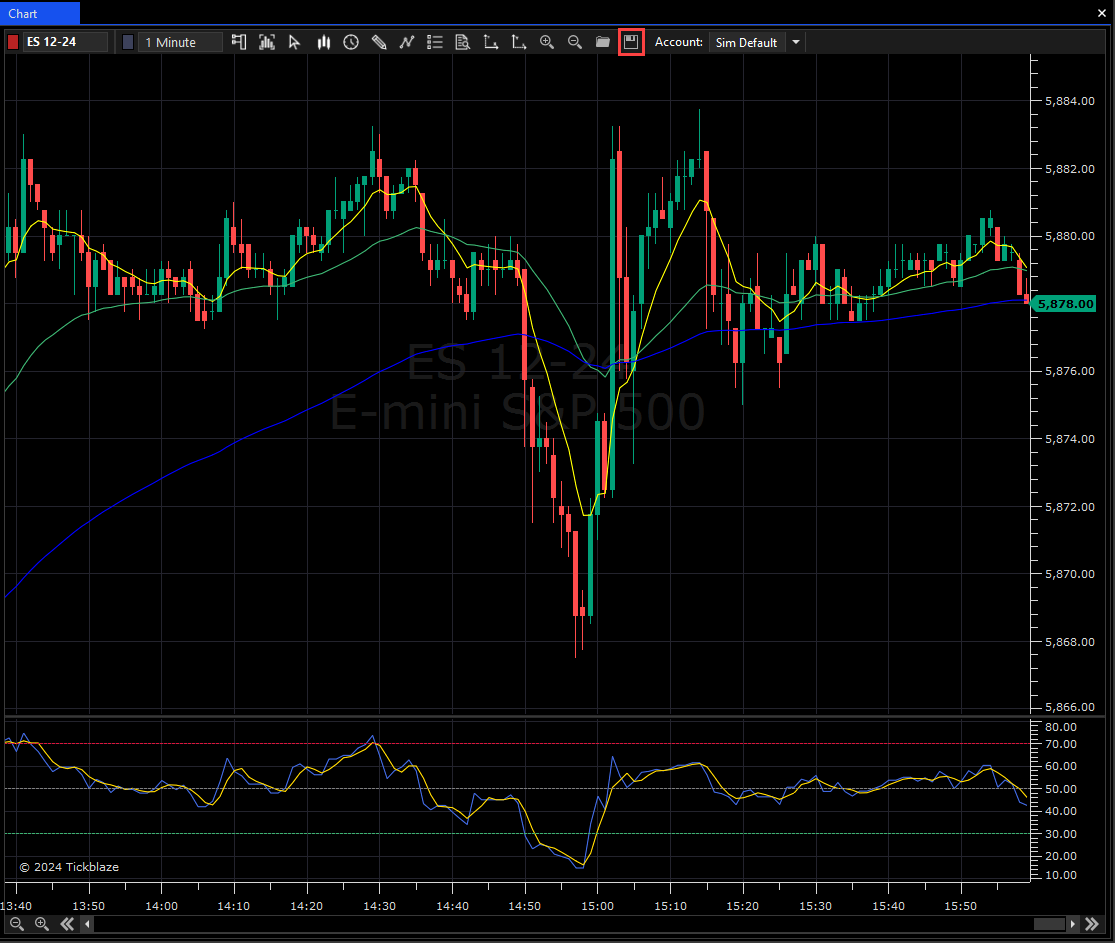
- Click on the Save Chart Template icon on the chart top bar (shown in the red rectangle below):
- On the Resource Browser window, select the “Custom” Resource folder and enter a name for the chart template (shown in the red rectangles below) :
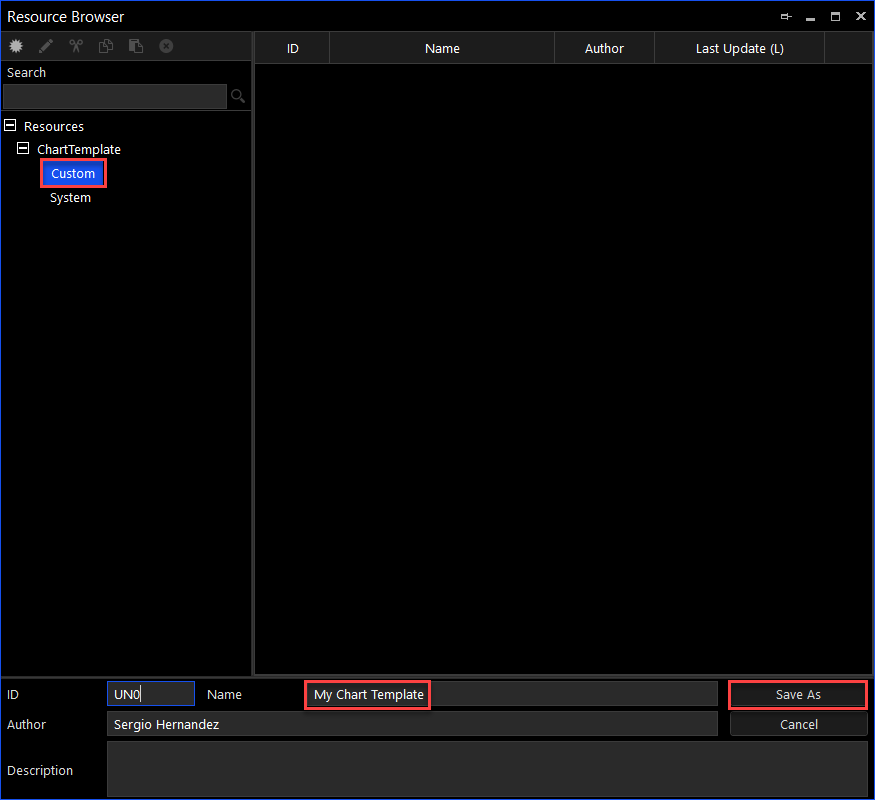
- Click on the “Save As” button (shown above) to save.
- The chart template created here will now be available to select and apply to any price chart. The Applying a Chart Template section shows how this is done.