Look for an existing table from which you want to create a Theme Template to later duplicate this table’s layout, color scheme, column configuration, etc.
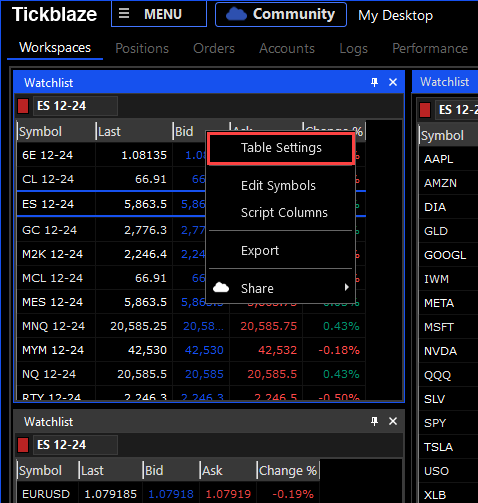
In the existing table (a watchlist in this case), right-click and select “Table Settings” (shown in the red rectangle) from the menu.
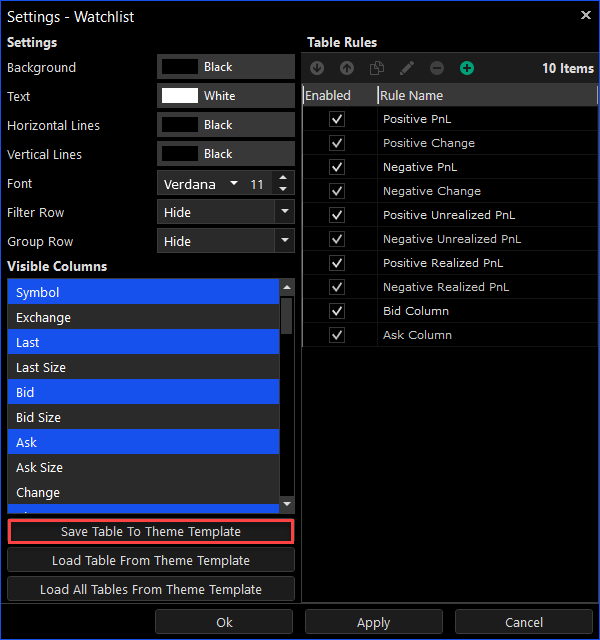
In the Table Settings window, click on “Save Table to Theme Template” (in red rectangle shown below).
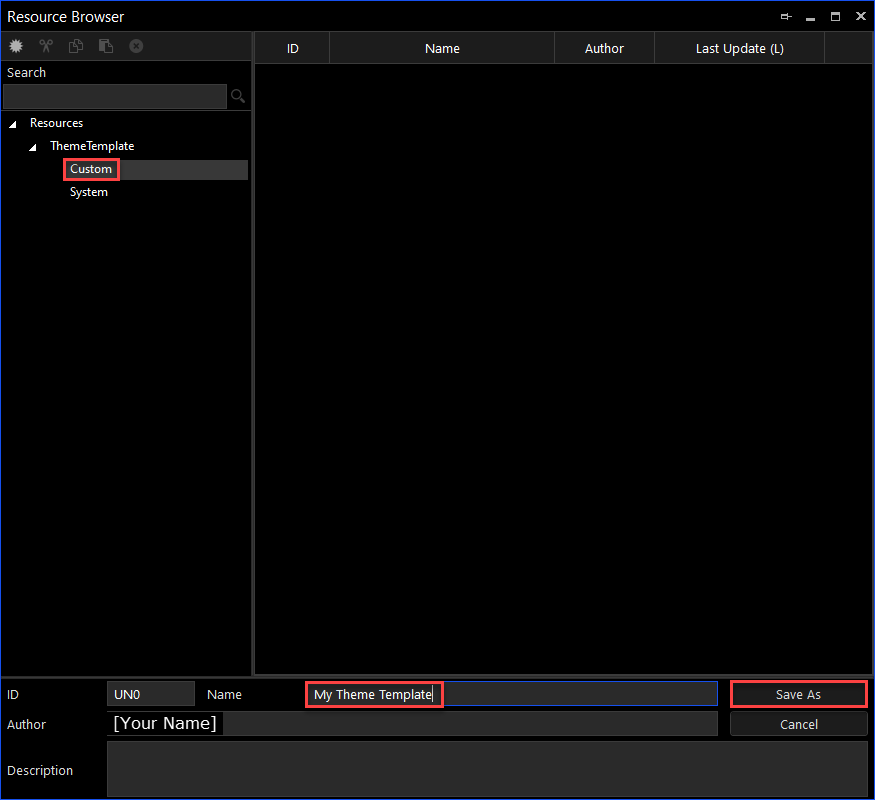
In the Resource Browser window “Resources” folder tree, select the “Custom” folder and enter a name for the theme template you are creating in the “Name” field (shown in the red rectangles below):
Click on the “Save As” button to save the theme template.
Click on the “Ok” button on the Table Settings window to close.
The saved Theme Template will now be available in the Resource Browser window in the “Custom” folder to select and apply to any table window.