Discretionary Desktop Strategy Desktop Web Trader Mobile App Platform Brokers Funds OMS / OME Trade Copier Prop Firm CRM Prop Firm Partners Giveaway Blog B2B Integrations Affiliates Webinars Press and Awards Tradecraft FAQs Community Wiki / Documentation Platform Tutorial Videos Contact Us Marketplace Offers ATS (Alpha Trading Syndicate) AQS (Alpha Quant Syndicate) ACS (Alpha Capital Syndicate) Trader Titans Pricing Login Home
Skip to article

Applying a Chart Template

Last updated

How to apply a chart template to a chart

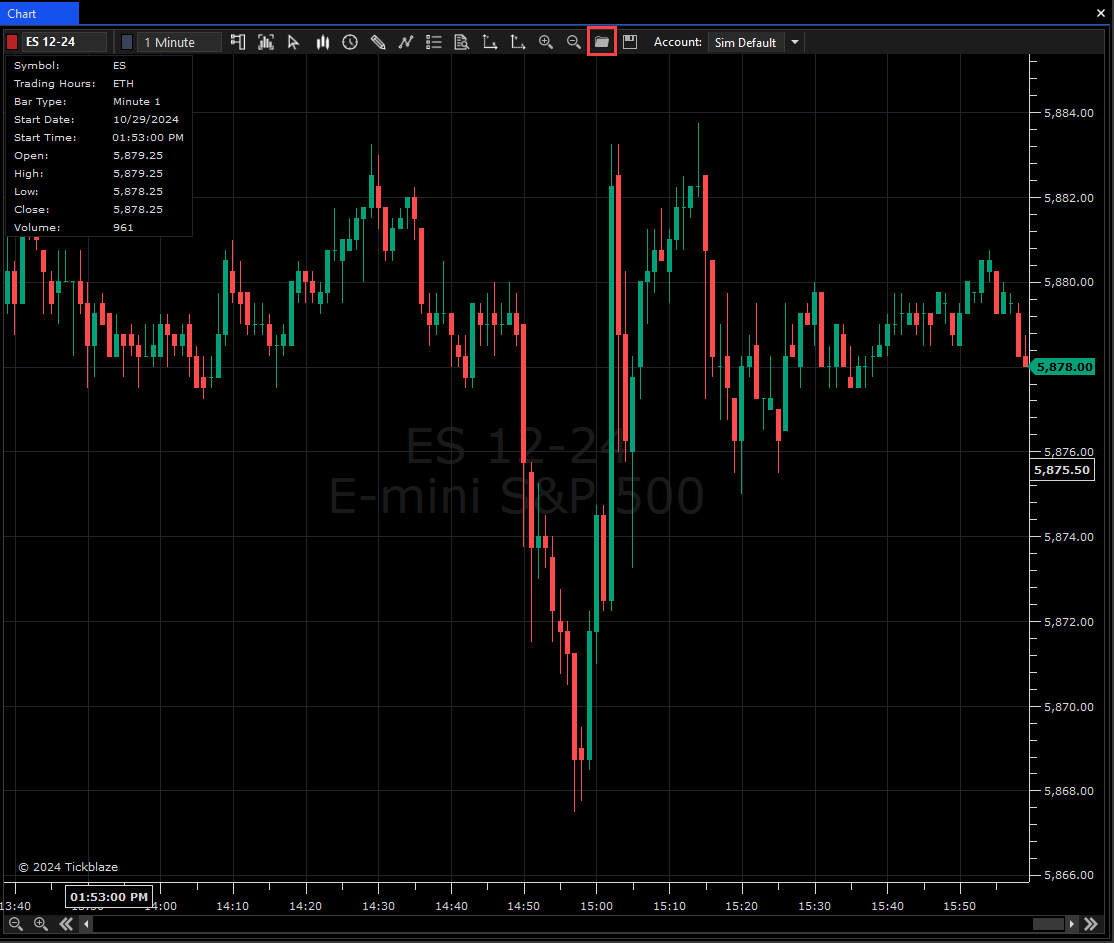
  1. On the chart to which you wish to apply a chart template, click on the Load Chart Template icon (shown in the red rectangle below):
Applying a Chart Template screenshot
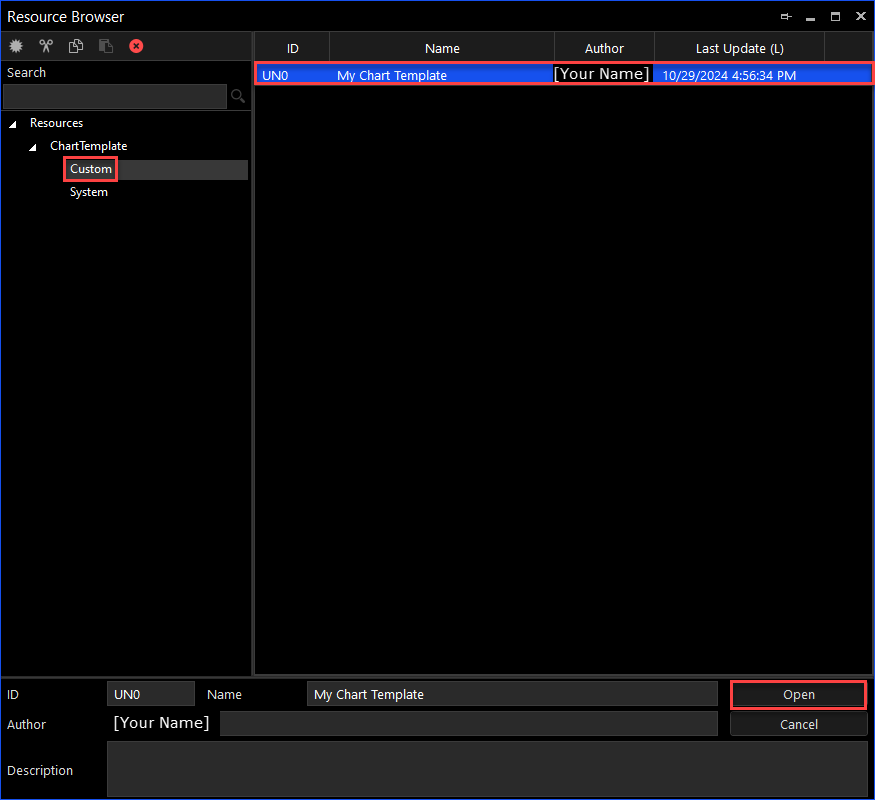
  1. On the Resource Browser window, select the “Custom” Resource folder, then the My Chart Template on the pane to the right and click on the “Open” button to load the chart template on the chart (shown in the red rectangles below):
Applying a Chart Template screenshot
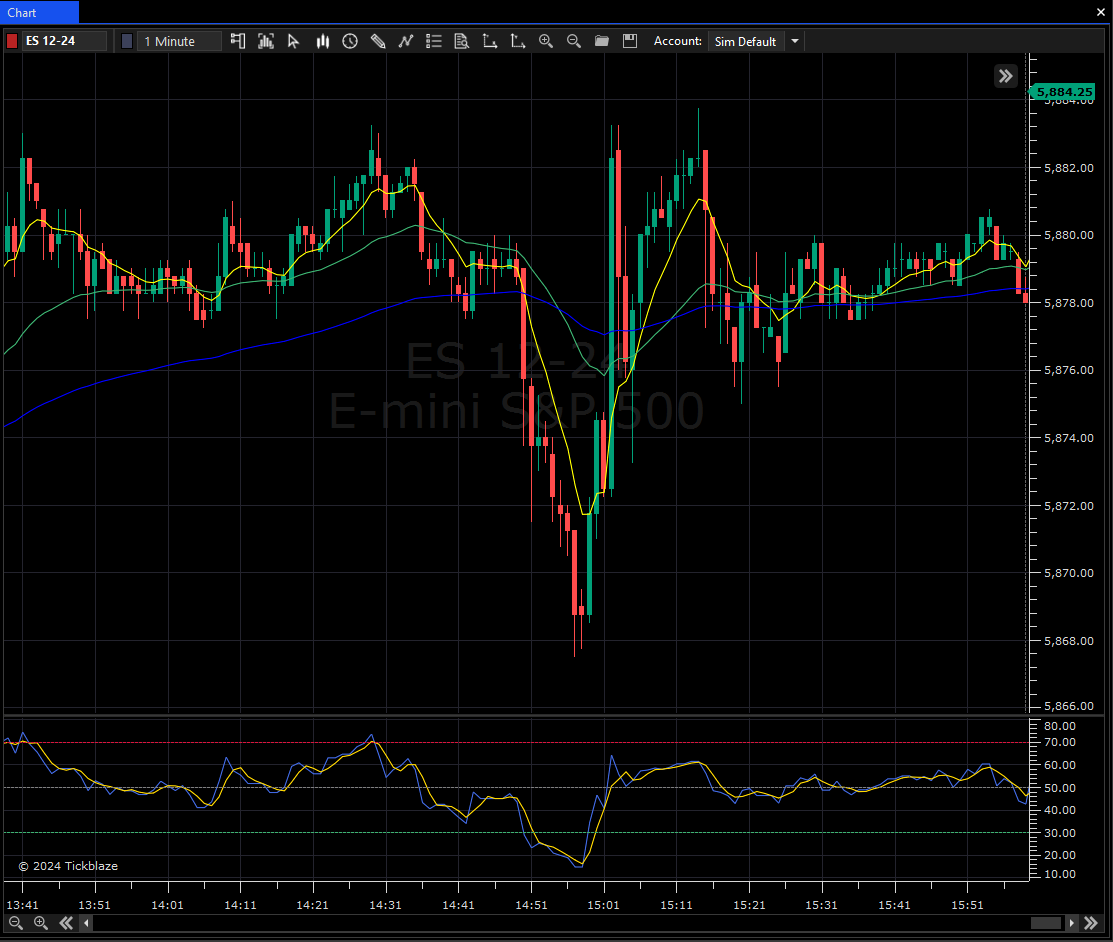
  1. The My Chart Template contents and settings are loaded on the chart as shown below.
Applying a Chart Template screenshot