Installing the Software
Download the Tickblaze installation file
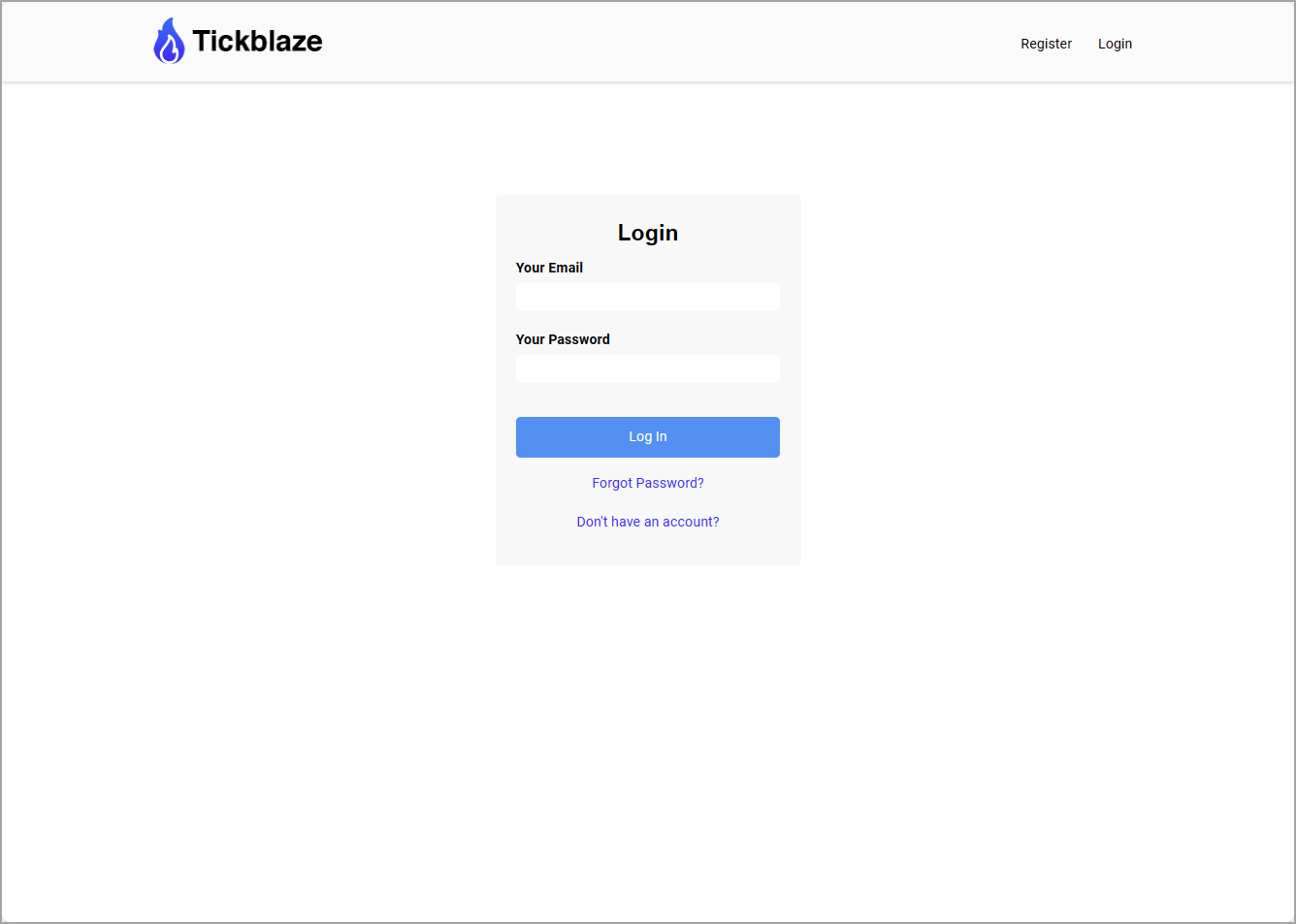
1.Go to the Member's Area website login page at https://members.tickblaze.com/login/ (shown below):
2.Log in to the Member's Area website (see above) using the login credentials provided during the Tickblaze account creation process to reach the Dashboard page (shown below):
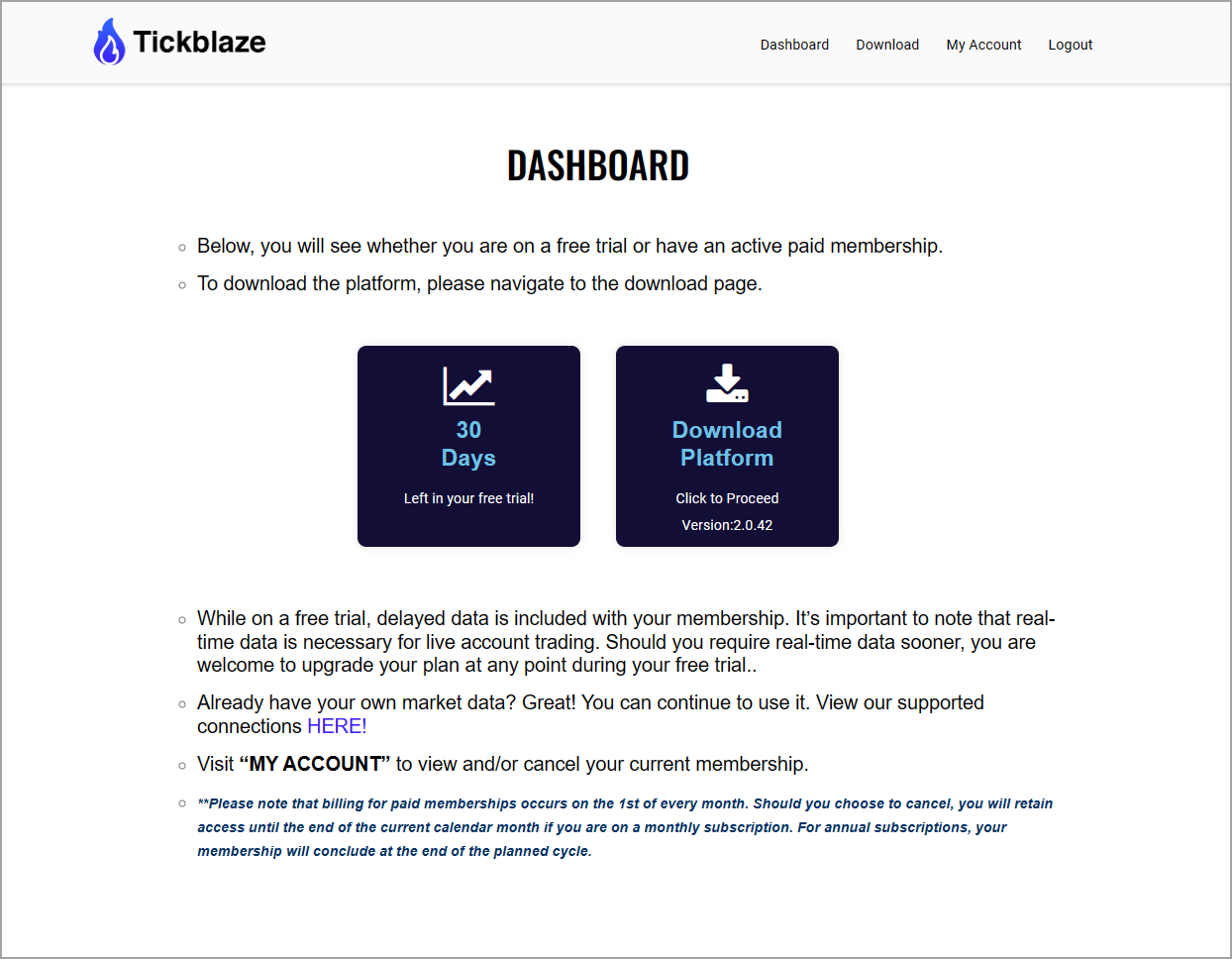
3.On the Dashboard page, click on the "Download Platform" large icon near the center of the page (this will download the "Tickblaze2Setup" installation file to the "Downloads" folder of your computer hard drive).
Software installation
1.Go to the Downloads folder in your computer and locate the "Tickblaze2Setup" file.
2.Double-click on the "Tickblaze2Setup" file name.
3.If Windows asks for your permission to run the installer program, select "Yes".
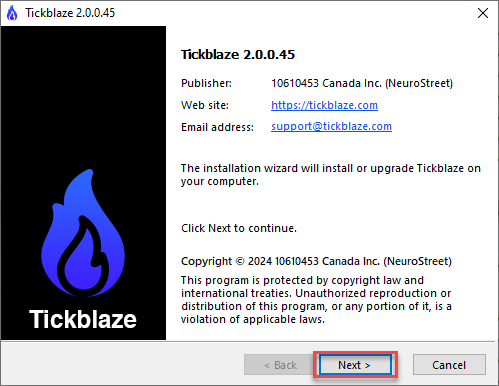
4.When the software installer window appears (shown below), click on the "Next" button and follow the instructions until the installation process completes. The last step of the installation process has the option to start the platform upon clicking on the "Finish" button. If you don't wish to start the platform at that time, disable the "Start Tickblaze right now" checkbox on the installer window before clicking on the "Finish" button.
5.The installation process will place Tickblaze software launch icons on your computer desktop for the "Tickblaze Desktop" and the "Tickblaze CLI" components, when it completes.